Fix your slow Shopify Prestige theme with proven optimization techniques. Improve Core Web Vitals, reduce load times, and boost conversions with actionable solutions.
This guide breaks down Shopify Prestige theme slow loading fix with practical implementation steps, common risks, and the fastest path to measurable Shopify improvements.
Why Your Prestige Theme Is Loading Slowly (Common Culprits)
The Prestige theme isn't inherently slow — performance problems typically come from what you've added on top.
Shopify's infrastructure is excellent by default: fast servers, a global CDN via Cloudflare, automatic image format conversion, and pre optimized base themes. The problems come from what merchants add on top: apps, third party scripts, custom theme modifications, oversized images, and excessive font loading.
Understanding these root causes helps you prioritize fixes that deliver the biggest performance gains for your Shopify Prestige theme slow loading fix efforts.
Third-Party Apps Adding Weight
Installed Shopify apps are the single biggest cause of Core Web Vitals failure on Shopify stores. Every app can inject JavaScript and CSS onto every page of your store, even pages where that app is not used.
Your review app loads JavaScript on your homepage. Product recommendation widgets execute on contact pages. Countdown timers inject code on every product page even when no sale is active.
The average Shopify store has 15–20 apps, with 5–10 injecting frontend scripts. Removing apps isn't always practical — and uninstalling doesn't always remove leftover code.
Each app typically adds 30-150KB of JavaScript that must be parsed and executed before your page becomes interactive.
"Every time you install an app from the Shopify App Store, that app needs a way to show its features on your storefront. These are called 'third-party scripts' because they come from external servers — not from Shopify's infrastructure or your theme code." — Thunder Page Speed
The most common format for images is JPG, PNG, and GIF. GIF images should be avoided at all costs, as they are heavy and slow to load. Consider using MP4 videos instead. PNG should also be avoided if possible. PNG can be two to three times heavier than JPG images.
Many Prestige stores upload high-resolution images without considering file sizes. A single unoptimized hero image can delay Largest Contentful Paint (LCP) by 2-4 seconds.
The use of high quality and high-resolution images should be avoided when designing a website, which is something you probably already know because users may leave your page if the images take too long to load. To fix this problem, you can use the Lazy Load feature.
Expand details: Image Format Performance Comparison
It might be tempting to create heavy pages with a lot of sections. However, adding sections is not free performance-wise. We recommend you limit the number of individual sections per page to 12 for best performance.
Prestige's flexibility becomes a liability when merchants add too many sections or create complex product loops. Each section requires server-side processing and increases DOM complexity. Heavy customizations like complex variant selectors or infinite scroll implementations can add hundreds of milliseconds to page load times.
Server Response Time Problems
While Shopify handles most server-level optimizations,
Parser-blocking scripts block the construction and rendering of the DOM until the script is loaded, parsed, and executed.
When your theme includes blocking JavaScript from apps or custom code, the server must wait for these resources before sending the complete page to browsers.
During high-traffic events, third-party monitoring tools might show your site as slow or down when it's actually performing well for real customers. This happens because Shopify prioritizes real customer traffic over bot traffic during peak periods.
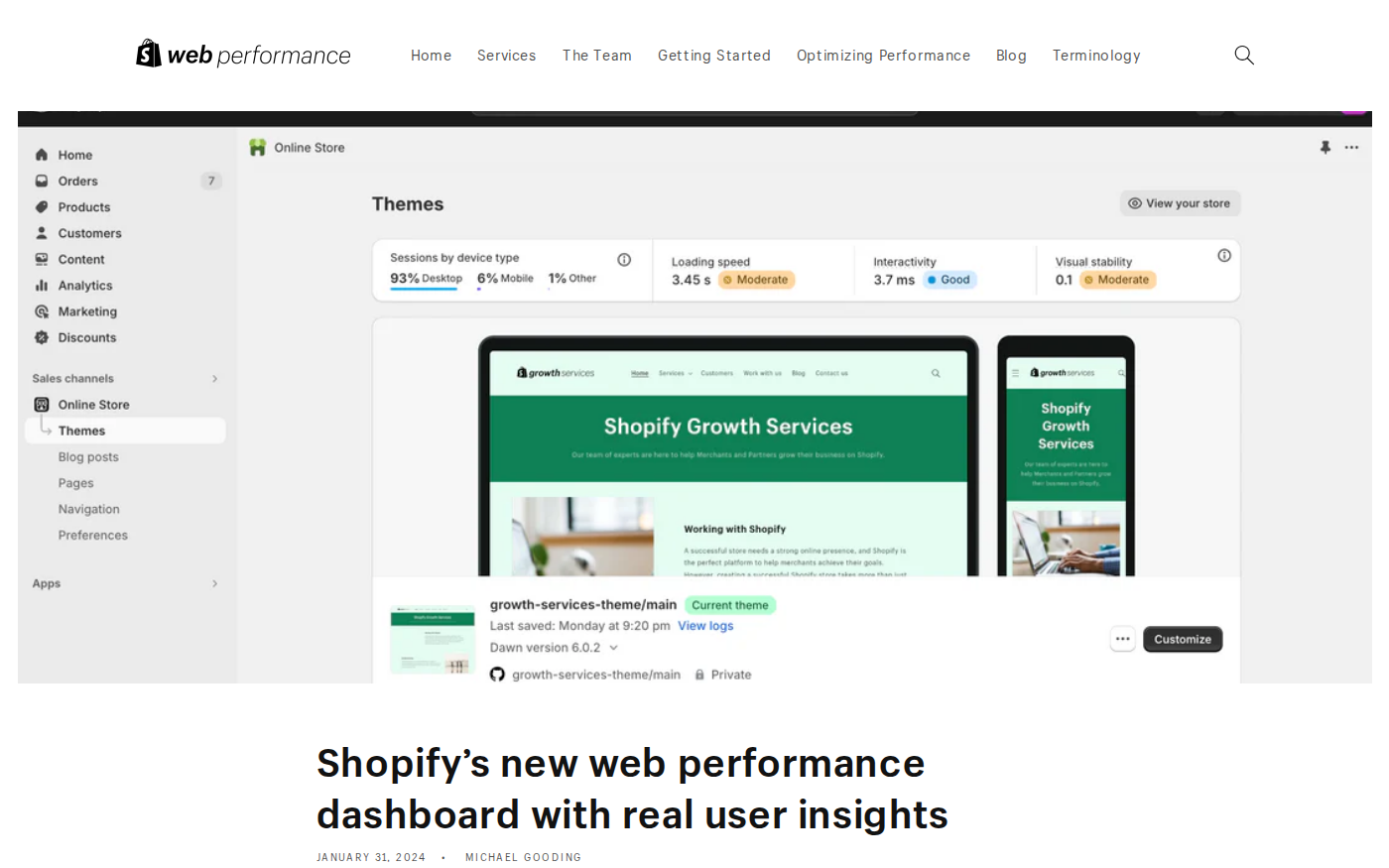
Shopify's web performance dashboard — Official guidance on using Shopify's performance monitoring tools
Source: performance.shopify.com · Captured: Apr 8, 2026
Diagnosing Your Prestige Performance Issues
Start with Shopify's built-in performance tools before moving to external auditing.
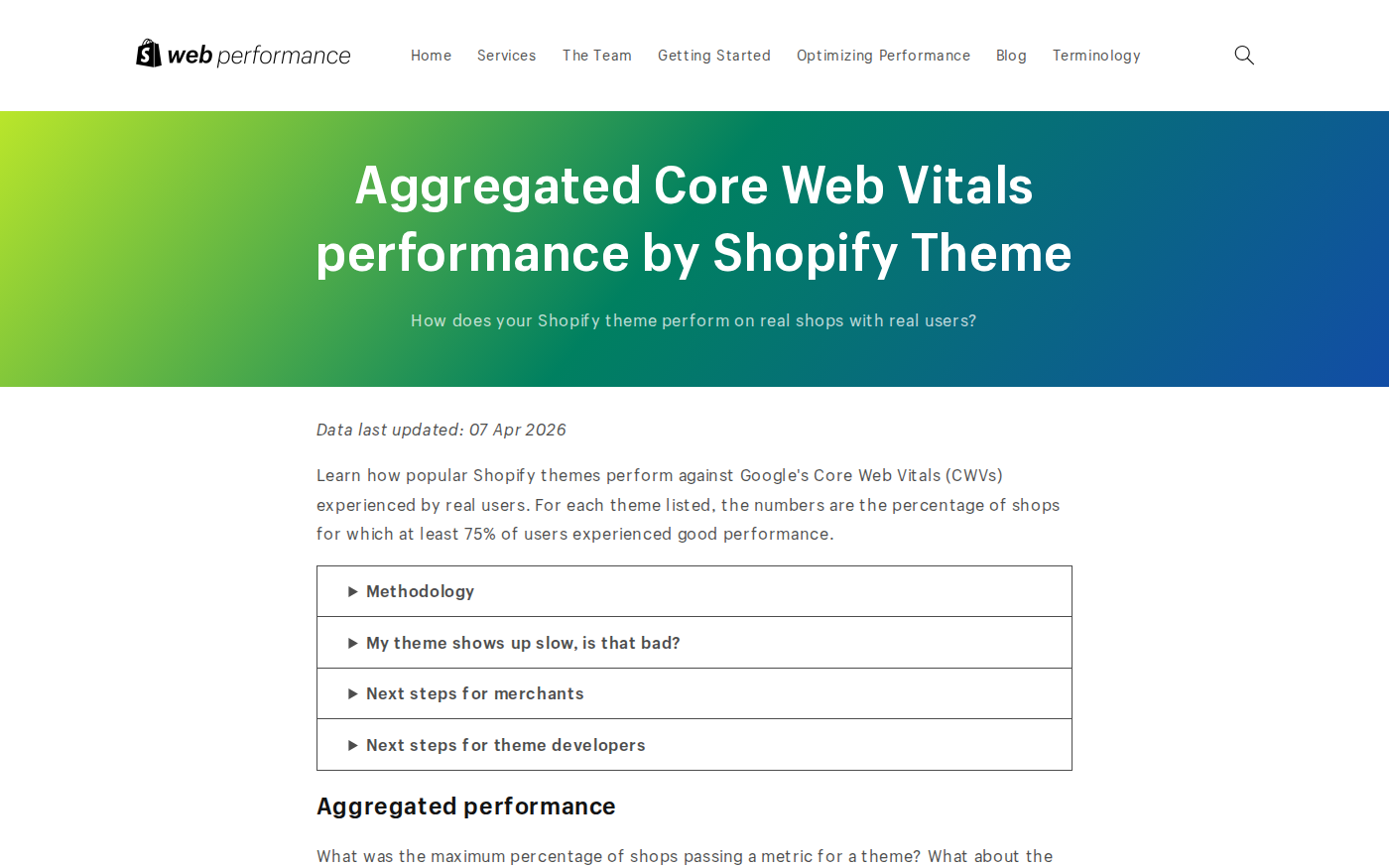
Learn how popular Shopify themes perform against Google's Core Web Vitals (CWVs) experienced by real users. For each theme listed, the numbers are the percentage of shops for which at least 75% of users experienced good performance.
This gives you theme-specific benchmarks to measure against.
Using Shopify's Web Performance Dashboard
Navigate to Online Store > Themes in your Shopify admin and click "View web performance."
Shopify provides a built-in speed score in your admin under Online Store > Themes. While simplified, it tracks directional trends.
This dashboard shows your Core Web Vitals scores compared to other Shopify stores using similar traffic levels.
Google uses mobile-first indexing — your mobile PageSpeed score is the one that matters for rankings. Mobile connections are slower and more variable than desktop broadband, making every kilobyte of unnecessary JavaScript and every unoptimized image disproportionately painful on mobile. With more than 60% of Shopify traffic coming from mobile devices, mobile theme performance is where optimization ROI is highest.
The new Core Web Vitals primarily focus on "Field Data" — data from real users. "Lab Data" is a simulation and doesn't necessarily reflect real-life experience.
Run audits in incognito mode to eliminate browser extension interference. Focus on the Performance section, specifically:
Largest Contentful Paint (LCP):
LCP measures how long it takes for the largest visible content element — typically your hero image on the homepage or your main product image on product pages — to load and become visible. The median Shopify store LCP of 4.2 seconds is significantly above the 2.5-second "Good" threshold, meaning most Shopify stores are delivering a suboptimal first impression to the majority of their visitors. Optimizing LCP is usually the highest-priority CWV improvement for Shopify stores.
Total Blocking Time (TBT): Shows JavaScript execution time blocking the main thread
Third-Party Impact: Identifies specific apps and scripts causing slowdowns
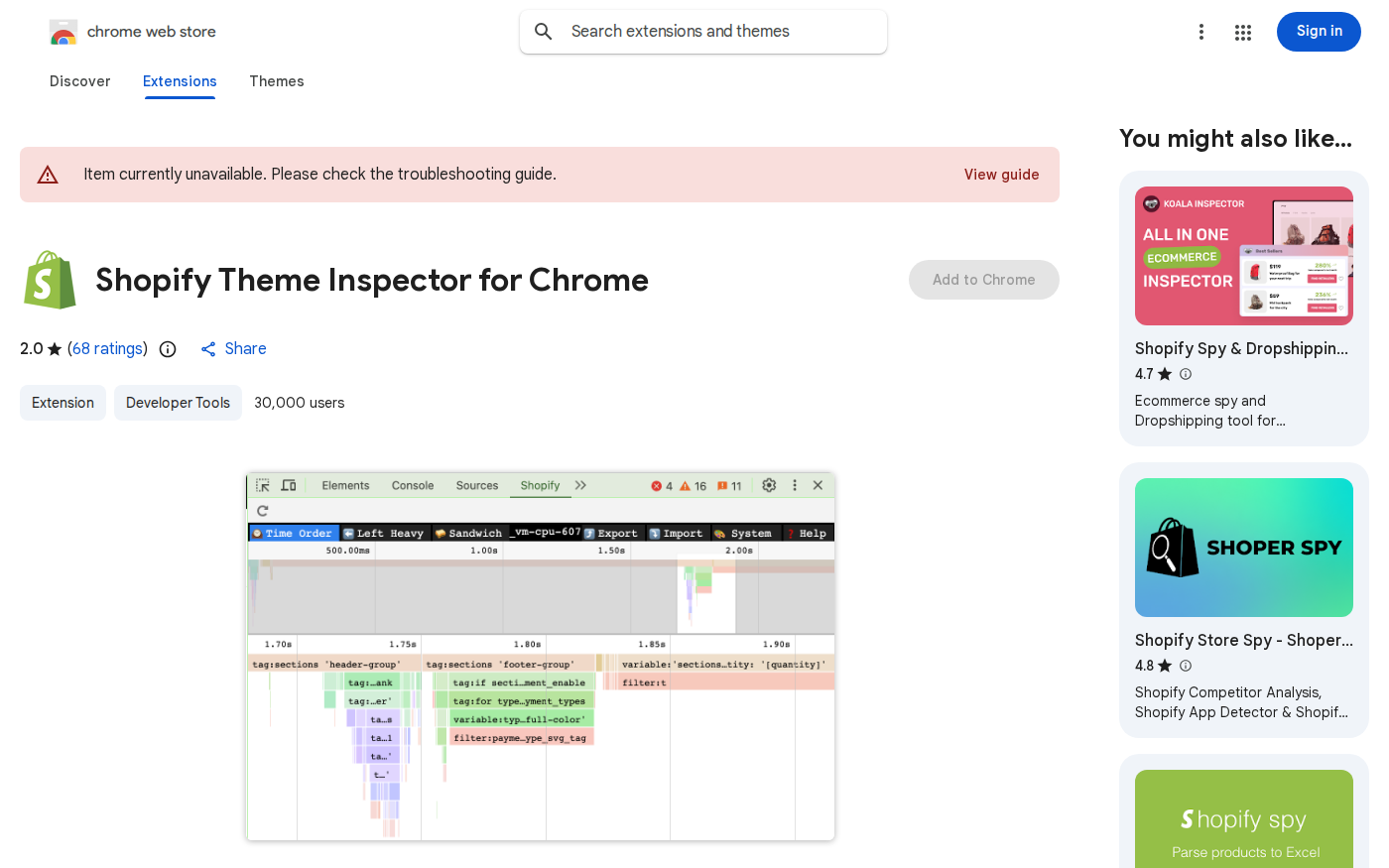
Shopify apps often insert their own snippets into your theme files. Theme inspector is great for finding app snippets rendered in Liquid and pointing you to the theme file that's slow. It won't diagnose third-party JavaScript downloads or network bottlenecks.
The extension highlights slow-loading Liquid templates and helps identify:
Product collection loops taking excessive time
App snippets causing server delays
Template inheritance problems
Database query inefficiencies
"Theme Inspector is great for finding app snippets rendered in Liquid and pointing you to the theme file that's slow. While we focus on script bloat, Theme Inspector helps rule out server-side Liquid bottlenecks before blaming JavaScript." — Shero Commerce
Understanding Core Web Vitals Scores
Since replacing FID in March 2024, INP has become the hardest Core Web Vital for Shopify stores to pass. Unlike FID (which only measured the first interaction), INP tracks responsiveness across every tap, click, and keypress during the entire visit. According to Chrome UX Report data, only 65% of Shopify origins pass INP compared to 89% for CLS and 72% for LCP. If you're troubleshooting why your Shopify store is slow, INP is likely the bottleneck you haven't checked yet.
According to the Core Web Vitals Technology Report, Shopify leads WordPress on mobile CWV pass rates (around 65% vs 44% as of late 2025).
Shopify Theme Inspector for Chrome — Essential tool for debugging Liquid performance issues
Source: chromewebstore.google.com · Captured: Apr 8, 2026
Core Web Vitals Optimization for Prestige Theme
Focus on the three metrics that directly impact Google rankings and user experience.
March 2025 Core Update impact: Google's March 2025 core algorithm update further emphasized page experience signals. E-commerce sites with poor CWV saw measurable ranking drops, while stores that passed all three metrics gained visibility. For Shopify merchants, this makes CWV optimization one of the highest-ROI activities in 2026.
Fixing Largest Contentful Paint (LCP)
Optimize your hero images and above-the-fold content for fastest loading. LCP measures when your largest visible element finishes rendering — typically your homepage banner or product page main image.
For Prestige themes specifically:
Disable page transitions:
One option offered in Impact and Prestige can impact performance negatively. This setting does a fade-out/fade-in when changing from one page to another.
Turn off this feature in theme settings > Animations.
Optimize hero images: Compress your main banner to under 100KB using WebP format. Use proper image dimensions matching display size.
Preload critical resources: Add this to your theme.liquid <head> section:
Prevent unexpected visual shifts that frustrate users. CLS measures layout stability during page load.
CLS measures unexpected visual shifts — when content moves after it has already been painted.
Common CLS causes in Prestige themes:
Images without dimensions
Web fonts loading without fallbacks
Dynamic content insertion by apps
Sticky headers changing height
Prestige-specific CLS fixes:
Set explicit image dimensions in all theme files
Use font-display: swap for custom fonts
Reserve space for app widgets before they load
Configure proper aspect ratios for product images
Improving Interaction to Next Paint (INP)
Optimize JavaScript execution for responsive interactions.
INP (Interaction to Next Paint) replaced FID (First Input Delay) in March 2024 as a Core Web Vital. While FID only measured the delay of the first interaction, INP measures the latency of all interactions throughout the page lifecycle and reports the worst one. This means INP is a stricter, more comprehensive measure of responsiveness that catches issues FID would have missed.
For Prestige stores, INP problems typically come from:
Heavy app JavaScript blocking the main thread
Complex product variant selection logic
Chat widgets and popup scripts
Analytics and tracking pixels
INP optimization strategies:
Defer non-critical apps: Move review widgets, newsletter popups, and analytics to load after user interaction
Simplify variant selection: Replace complex JavaScript with CSS-only solutions where possible
Use interaction-based loading: Load chat widgets only when users scroll or show intent to interact
Mobile scores are typically 40–60% worse than desktop because of slower processors and cellular connections. Always test and optimize for mobile first, since that is what Google uses for ranking (mobile-first indexing).
Prestige's responsive design handles most mobile optimization, but focus on:
Reducing JavaScript payload for mobile devices
Implementing mobile-specific image sizes
Testing touch interactions for proper INP scores
Ensuring mobile navigation doesn't cause layout shifts
Shopify theme performance benchmarks — Aggregated Core Web Vitals performance data by theme
Source: performance.shopify.com · Captured: Apr 8, 2026
Image and Asset Optimization Strategies
Images are often the biggest performance killer on Shopify stores.
Images are often the biggest performance killer on Shopify stores.
Proper optimization can reduce your LCP by 40-60% while maintaining visual quality.
Implementing Proper Lazy Loading
Load images only when they appear in the viewport.
The technique of Lazy Image Loading can prove to quite powerful when it comes to Shopify stores. This technique involves making use of a Javascript library to load images only when they should be visible to the site visitor. This improves page load time. Lazy Image Loading is especially useful when the theme you use tall pages where a lot of the images will not be visible to the visitor until they scroll down. Therefore, you will not need to load all the images initially.
Important exception: Never lazy-load your hero image or LCP element. This delays the largest content paint and hurts performance scores.
Converting to WebP Format
Shopify automatically serves images in WebP format to supported browsers and handles basic compression.
However, you should optimize images before upload to reduce the source file size Shopify works with.
WebP optimization workflow:
Use tools like TinyPNG or Squoosh.app before uploading
Target file sizes under 100KB for hero images
Compress product images to 50-80KB range
Use JPG for photographs, WebP for graphics with transparency
Image Type
Recommended Size
Format
Compression Level
Hero/Banner
< 100KB
WebP/JPG
85% quality
Product Main
< 80KB
WebP/JPG
80% quality
Product Grid
< 50KB
WebP/JPG
75% quality
Icons/Graphics
< 20KB
WebP/SVG
90% quality
Responsive Image Sizing
Serve appropriately sized images for different devices.
Viewing large images on a small device can be frustrating and can slow down page load speed. Using responsive images automatically resizes them to fit the device screen that customers are using. Specifying an image size ensures that you download the smallest possible image without degrading quality. The storefront requests the image size that's going to be displayed, and then cuts down the file size downloaded from the CDN. This reduces reliance on browser-side scaling.
Shopify provides a world-class CDN at no additional charge, ensuring fast global performance. All assets are served using HTTP/2, reducing overhead compared to older protocols.
You don't need additional CDN services, but optimize how you use Shopify's CDN:
Use URL filters for optimal sizing: Always specify image dimensions in Liquid
Leverage HTTP/2 multiplexing: Multiple image requests don't block each other
Enable browser caching:
Shopify sets browser caching for cacheable resources to one year, the maximum possible duration. This means that repeat visitors to your store will experience faster loading times.
App Audit and Performance Impact
Every app you install adds code to your store, potentially slowing it down.
Each app you install adds code to your store, potentially slowing it down. In 2025, app bloat remains a major performance issue.
A systematic app audit is critical for any Shopify Prestige theme slow loading fix.
Identifying Performance-Heavy Apps
Use performance tools to measure each app's actual impact.
Focus on measuring each app's actual impact on load time rather than counting apps. As a rule of thumb, if your PageSpeed score drops more than 5 points after installing an app, that app needs optimization.
App audit methodology:
Baseline measurement: Record your current PageSpeed score
Disable apps temporarily: Use theme settings or app toggles
Test impact: Measure score change after each app removal
Document findings: Create priority list based on performance cost
Use Lighthouse to find 3rd-party script bloat. Our latest speed benchmark of 1,000 Shopify stores found that fewer than half consistently pass Core Web Vitals thresholds! Scripts and apps are a big culprit in the performance drops.
App Alternatives with Better Performance
Replace heavy apps with lighter alternatives or built-in Shopify features. Many popular apps have performance-optimized alternatives that deliver similar functionality with less code overhead.
Heavy App Category
Performance Impact
Better Alternative
Expected Savings
Page Builders
300-800KB JS
Native sections
2-4s load time
Review Systems
150-400KB JS
Judge.me (optimized)
1-2s improvement
Analytics Suites
200-500KB JS
Google Analytics 4
500ms-1s
Chat Widgets
100-300KB JS
Shopify Inbox
200-800ms
Consider Shopify theme changes for implementing native functionality instead of relying on heavy third-party solutions.
Removing Unused App Code
Uninstalling apps doesn't automatically clean up theme files.
Uninstalling an app doesn't automatically remove its code from your theme. You might need to contact the app developer for complete removal instructions.
Manual cleanup process:
Search theme files: Look for app references in theme.liquid, templates, and snippets
<!-- Look for these in theme.liquid -->
<script src="https://app-name.com/script.js"></script>
{% render 'app-snippet' %}
{{ app.metafields.namespace.key }}
Built-in Shopify Features vs Third-Party Apps
Shopify's native features often perform better than third-party alternatives.
Some features that Shopify provide requires a lot of JavaScript to load and, therefore, slower performance. One feature is the "dynamic checkout button," which displays customers a one-click accelerated payment button (such as Apple Pay, Amazon Pay, or PayPal). By turning off this feature, you can improve your store performance.
When to use built-in features:
Product recommendations: Use Shopify's algorithm instead of third-party engines
Search functionality: Native search is faster than most app alternatives
Customer accounts: Built-in account features load faster than custom solutions
Payment processing: Shopify Payments integrates better than external processors
Optimize your Liquid templates and JavaScript for maximum performance.
Consider building your theme using primarily HTML and CSS. JavaScript shouldn't be required for the basic functionality of your theme, such as finding or purchasing products. Instead, you should only use JavaScript as a progressive enhancement, and only where there is no HTML or CSS solution available.
Using Shopify Theme Inspector for Debugging
Identify server-side Liquid performance bottlenecks. The Shopify Theme Inspector for Chrome helps debug Liquid rendering times that can slow down server response before any JavaScript executes.
Key debugging techniques:
Profile slow templates: Theme Inspector highlights templates taking over 200ms to render
Identify expensive loops: Product collection queries consuming excessive server time
Find app snippet bottlenecks: Third-party code causing server delays
Avoid these common mistakes that slow down Prestige themes:
1. Nested product loops:
<!-- AVOID: Nested loops create O(n²) complexity -->
{% for collection in collections %}
  {% for product in collection.products %}
    {% for variant in product.variants %}
      <!-- Heavy processing here -->
    {% endfor %}
  {% endfor %}
{% endfor %}
2. Excessive API calls in loops:
<!-- AVOID: API call inside loop -->
{% for product in collection.products %}
  {% assign metafield = product.metafields.namespace.key %}
  {% if metafield %}
    <!-- Process metafield -->
  {% endif %}
{% endfor %}
3. Heavy image processing:
<!-- BETTER: Specify dimensions once -->
{% assign image_size = '800x600' %}
{% for product in collection.products %}
  {{ product.featured_image | image_url: image_size }}
{% endfor %}
Optimizing Product and Collection Loops
Limit query complexity and loop iterations.
Your minified JavaScript bundle size should be 16 KB or less. Shopify automatically minifies JavaScript when it's requested by the storefront.
Best practices for Prestige themes:
Limit collection size: Use limit parameter to prevent massive loops
Use efficient filters: Apply filters before loops, not inside them
Cache expensive calculations: Store complex calculations in variables outside loops
Optimize variant selection: Use CSS-only solutions where possible instead of JavaScript
Deferring Non-Critical JavaScript
Load JavaScript after critical content renders.
Smart deferral tools like Thunder understand script dependencies and defer scripts in the correct order, preserving functionality while improving load time. To reduce JavaScript execution time, start by removing unused apps and their leftover code from theme.liquid. Then defer non-critical third-party scripts so they load after your main content.
For comprehensive optimization without manual coding, consider professional Shopify development services that understand Prestige theme architecture.
Monitoring and Maintaining Performance
Performance optimization is ongoing, not a one-time fix.
Fixing Core Web Vitals once is not enough. Theme updates, new apps, content changes, and seasonal traffic patterns can all degrade your scores. Set up ongoing monitoring: Google Search Console: Check the Core Web Vitals report weekly. Set up email alerts for regressions.
Setting Up Performance Monitoring
Establish automated tracking to catch regressions early. Use multiple tools to get complete performance visibility:
1. Google Search Console:
Check Core Web Vitals report weekly
Set up email alerts for performance regressions
Monitor both mobile and desktop scores
2. Shopify's Web Performance Dashboard:
Shopify provides a built-in speed score in your admin under Online Store > Themes. While simplified, it tracks directional trends.
3. Real User Monitoring (RUM):
Services like SpeedCurve or web-vitals.js let you collect field data directly from your visitors for granular analysis.
"Core Web Vitals optimization isn't a one-time task. As e-commerce continues to grow and competition intensifies, Core Web Vitals optimization is no longer optional, it's essential." — 2HatsLogic
Regular Performance Audits
Schedule systematic performance reviews.
At minimum, check monthly and after any significant store updates or new app installations.
Monthly audit checklist:
Run Lighthouse audits: Test homepage, product pages, collection pages
Check app performance impact: Review any new installations
Monitor Core Web Vitals trends: Look for gradual degradation
Test mobile performance: Prioritize mobile optimization
Review image optimization: Check new product images
Triggers for immediate audits:
Installing new apps or themes
Adding custom code or features
Seasonal content updates
Customer complaints about site speed
Performance Budget Guidelines
Set performance thresholds to prevent regression. Establish clear limits for your Shopify Prestige theme slow loading fix efforts:
Metric
Target
Warning
Critical
Mobile PageSpeed
70+
50-69
< 50
LCP
< 2.5s
2.5s-4s
> 4s
INP
< 200ms
200-500ms
> 500ms
Total JS Size
< 500KB
500KB-1MB
> 1MB
Performance budget enforcement:
Before adding apps: Test performance impact in staging
Before major updates: Backup current performance baseline
After changes: Verify no significant regression occurred
When to Consider Professional Help
Some optimizations require technical expertise beyond basic theme management.
Third-party scripts are the hardest speed problem to solve manually — you can't edit app code, and naive deferral breaks functionality. Thunder Page Speed Optimizer was built specifically to solve this problem.
Consider professional help when:
Core Web Vitals consistently fail despite basic optimizations
Custom feature development demands performance-first architecture
The investment in professional Shopify development typically pays for itself through improved conversion rates and search rankings within 2-3 months.
Additional Reference Tables
Execution Priority Matrix for Shopify Prestige theme slow loading fix
Task type
Impact on growth
Effort level
Recommended sequence
Revenue blockers
High
Medium
Resolve first
Conversion UX fixes
High
Medium
Ship next
Design polish items
Medium
Low
Bundle weekly
Experimental ideas
Variable
High
Test after core fixes
Quality Assurance Checklist for Shopify Prestige theme slow loading fix
Checkpoint
Why it matters
Owner
Done when
Mobile QA
Most traffic is mobile-first
Developer + marketer
No layout or tap issues
Performance checks
Speed impacts conversion and SEO
Developer
Core templates pass audits
Tracking validation
Attribution affects decisions
Marketing ops
Events match expected counts
Rollback readiness
Reduces launch risk
Store owner
Previous version can be restored quickly
Measurement Plan for Shopify Prestige theme slow loading fix
Metric
Leading indicator
Review cadence
Action trigger
Conversion rate
Add-to-cart rate
Weekly
Drop >10% week-over-week
Speed health
LCP and CLS trend
After each release
Any regression from baseline
Merchandising quality
PDP engagement depth
Weekly
High bounce on key pages
Revenue outcome
AOV and revenue/session
Bi-weekly
No uplift after two test cycles
FAQ: Shopify Prestige theme slow loading fix
Why is my Prestige theme suddenly slow when it used to be fast?
We continuously monitor our speed on google speed insights and gtmetrix. In Christmas vacation we didn't monitor or did any big coding installation still our speed went like 12-15seconds to 30seconds. all of sudden speed is decreased.
Sudden performance drops usually come from new app installations, theme updates, or app updates that inject additional code. Check recent changes and use Chrome DevTools to identify new scripts.
Can I use speed optimization apps with the Prestige theme?
Yes, but choose carefully.
Dedicated to speed optimization only – Unlike all-in-one tools, Thunder specializes purely in performance enhancements, ensuring a lightweight, focused solution. Instant speed improvements, easy setup – One-click optimization automates lazy loading, script deferring and minification for immediate results.
Apps like Thunder Page Speed Optimizer and TinyIMG work well with Prestige without conflicts.
Should I switch away from Prestige to fix speed issues?
Not necessarily.
Dawn (Shopify's default free theme) consistently performs well on Core Web Vitals because it was built with performance as a priority.
However,
If you are choosing a new theme, check its CrUX data on ThemeVitals before purchasing. The cheapest performance optimization is starting with a fast theme.
Prestige can be optimized to perform well with proper app auditing and image optimization.
How do I fix INP issues specific to Prestige themes?
Common causes of poor INP on Shopify stores include: Heavy third-party scripts: Analytics, chat widgets, review platforms, and retargeting pixels all add JavaScript that can block the main thread during interactions. Complex DOM structures: Themes with deeply nested HTML elements make rendering updates slower.
Focus on deferring app scripts and simplifying variant selection JavaScript.
What's a realistic PageSpeed score target for Prestige themes?
The average Shopify store scores just 25–35 on Google PageSpeed Insights (mobile). That's well below the "good" threshold of 50+.
With optimization, Prestige stores should target 60-70+ on mobile, 80+ on desktop.
Does removing the page transition animation really help performance?
Yes, significantly.
While animations are highly optimized and should not cause any performance problems, one option offered in Impact and Prestige can impact performance negatively. This setting does a fade-out/fade-in when changing from one page to another.
Disabling this feature can improve load times by 200-500ms.
Summary
Shopify Prestige theme slow loading fix requires systematic identification and removal of performance bottlenecks rather than theme replacement.
The problems come from what merchants add on top: apps, third party scripts, custom theme modifications, oversized images, and excessive font loading. That is where Shopify stores fail Core Web Vitals.
Start with app audits using Lighthouse and Shopify Theme Inspector to identify the heaviest performance impacts. Focus on Core Web Vitals optimization, especially INP which affects 35% of Shopify stores.
These 4 steps take ~30 minutes and typically improve Core Web Vitals scores by 40-60 points.
Optimize images through WebP conversion and proper lazy loading, disable performance-heavy features like page transitions, and establish ongoing monitoring to prevent regression.
The combination of app cleanup, image optimization, and JavaScript deferring typically improves Prestige theme performance by 40-60% while maintaining all essential functionality. Regular performance audits ensure sustained speed improvements that directly impact conversion rates and search rankings.
Stop letting slow loading times kill your conversions. Our Shopify experts diagnose and fix Prestige theme performance issues using proven optimization techniques that deliver measurable speed improvements. Get professional Shopify Prestige theme slow loading fix services that boost Core Web Vitals, reduce app bloat, and improve user experience without breaking functionality.
Start your free trial and see measurable performance improvements in days, not weeks.
Analyze My Website
Share your store URL and we'll review execution bottlenecks impacting conversion.